
Take full control over your passwords using KeePass & Syncthing
If you care about your digital security you surely know that all your passwords must be unique and long enough (14 characters or even more). Special characters will increase complexity and strengthen your password. It is also advised that the combination of characters be entirely random and unrelated to any of your personal data.
Amazing premises, difficult implementation. How to remember all of these unique, complex, and incredibly long passwords?
Now the password manager comes into play.
You don’t have to remember all of your passwords. You save them in the database. Therefore, you are obliged to remember only 2 substantial passwords — the first one to decode your database and the second one to unlock your computer.
Moreover, you don’t have to invent a new password by yourself. Use a random generator for this purpose. There are some examples of generated passwords. Just take a look at how complex they are.
@T)739\$Kj[g@RTBEsLl
"Bd^!_&W1XtW:'+"D~75T{1{
qo=K$geAQ&t_{|,-&ALgw.sO8j6iYz
Password manager to rule them all
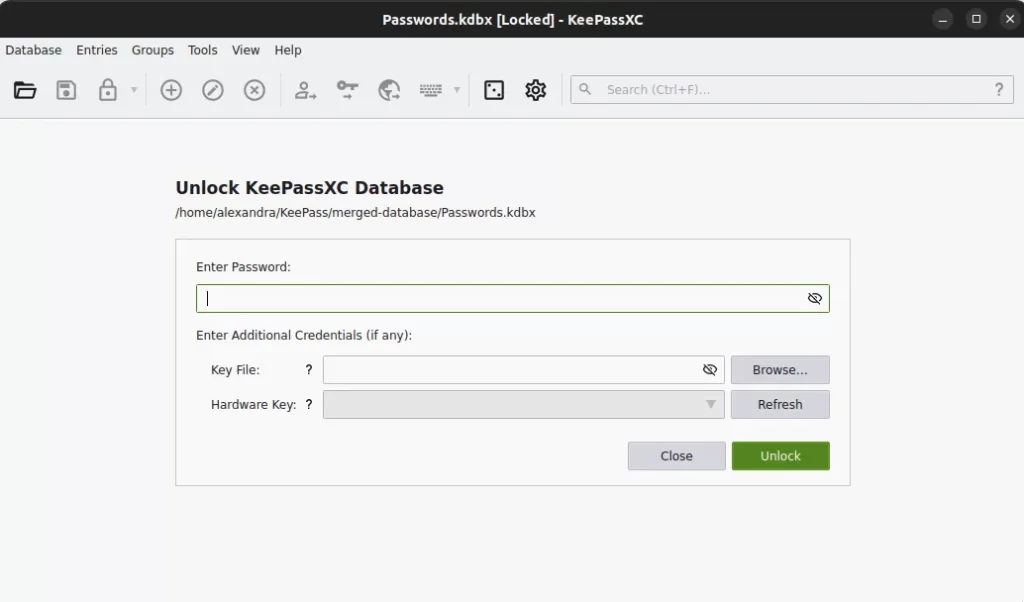
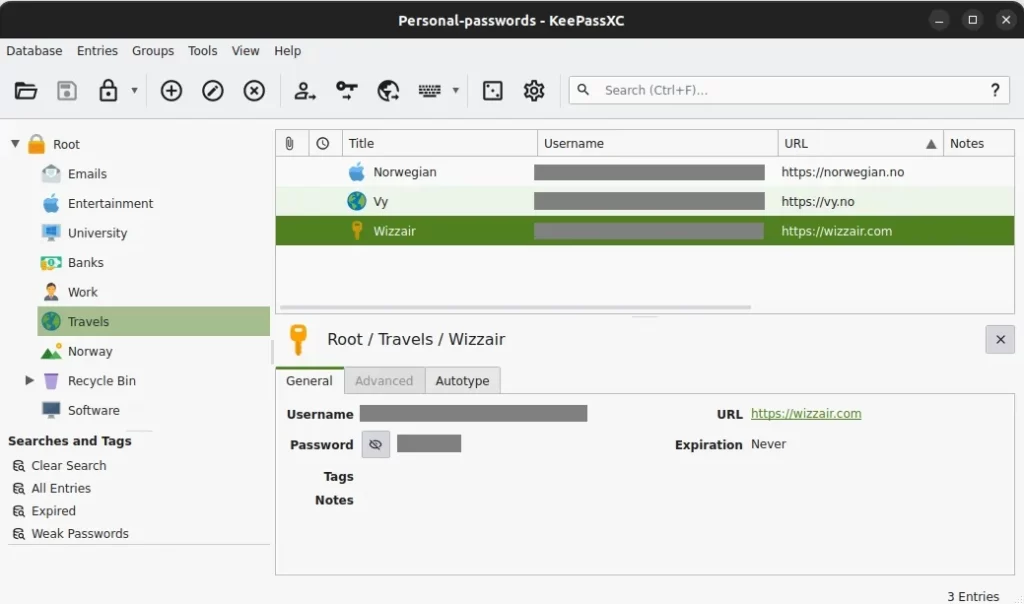
Password manager is a software application that allows users to store and manage their passwords for local applications or online services. You can put all your passwords in a single encrypted database, that is secured by a master key. This master key can consist of multiple components: a master password, a key file, and other protections. Thus, to unlock the entire database, you just need to remember one master password and/or choose the key file. Remember that if you define a multi-component database master key all of the key components are required to open the database.
The idea of a key file is that you have something. If an attacker obtains both your database file and your key file, then the key file provides no protection. Therefore, the two files must be stored in different locations. For example, you could store the key file on a separate USB stick.
source: KeePass
How does password manager encrypt passwords? ⁶
Currently, one of the best encryption algorithms available is AES-256. This cipher has been adopted by the U.S. government to protect classified data.³
AES (Advanced Encryption Standard) is the specification for encryption. The 256 in AES-256 means that the algorithm uses 256-bit secret key. The encryption key is composed of random strings of zeros and ones. For 256-bit key, there are 2²⁵⁶ combinations available. The longer the secret key, the harder it is for an attacker to guess via brute force attack. With 2²⁵⁶ combinations it gets impossibly difficult to hack the algorithm since it’s more than the number of atoms in the universe. With the right quantum computer, AES-256 would take 2.29×10³² years to crack⁴, whereas the universe is currently about 1.38×10¹⁰ years old⁵ … not even close enough.
AES-256 is a symmetric encryption algorithm. It means that the same key is used for encrypting and decrypting data. This kind of encryption is also so-called secret key encryption, as the key must be kept secret from third parties.
Although AES-256 became a standard for Virtual Private Networks, firewalls, and password managers, there’s already better and faster encryption calledXChaCha20. We’ll see in the future if it replaces the old-hand AES-265.
Most common types of password managers
- self-hosted password manager
Encrypts and stores passwords directly on your machine, limiting the potential for breaches. However, you can access your vault on only one device. In case of losing the device, you lose your passwords (unless you have backup). But there is a workaround for that. We’ll talk about it later.
- cloud-based password manager
Can be accessible at any time and from any device, no matter the network or location. It stores your encrypted passwords on the service provider’s network. All reliable online password managers use zero-knowledge technology. They encrypt the data on your device before sending it to the server. However, your credentials are stored in an unknown location and data breaches are more likely.
The benefits of using a password manager
- You are no longer required to memorize every password.
- Password manager can auto-generate unique and highly secure passwords for you.
- It’s a timesaver. Your website credentials can be filled in automatically.
- Get access to your password database from multiple devices (if you choose wisely).
- Store more than just passwords, e.g. your credit card number, personal ID, etc.
Password manager setup — where to start? ²
- Choose the devices you want to use your password manager on.
Is it your computer or/and mobile phone? Maybe smart TV, or tablet? - Chosen password manager and install it on selected devices.
There are plenty of password managers to choose from. Comparisons between them are easily accessible on the net. You can choose from open-source or commercial ones, more personal or business oriented.
Some examples are KeePass, 1Password, and Bitwarden. Make sure it supports your desktop/mobile OS and browser.
I enjoy using KeePass — desktop version can be downloaded from here.
To download the mobile app, search for example KeePass DX on Google Play or KeePassium on the App Store. - Create a master password.
Choose a strong password to get access to your password manager (or rather password database).
Want some advice on creating a master password? Take a look into Tips and good practices section. - Start saving credentials to your accounts.
You can create groups of entries in most password managers. For instance, create Social media group to store credentials for your social media accounts or Bank group to store your bank account access details. Provide your username, password (or generate a new, stronger one), website URL, and optionally some notes. - (optional but making life much easier)
Share your database between the devices you use.
Updating the password database on each device separately sounds annoying and time-wasting. In the long run, you’ll end up with multiple versions of your database and outdated credentials. Having access to the same database file from multiple devices can address the issue.
If you use password manager that provides Cloud synchronization, you don’t have to worry about it. In turn, you might be worried about the security of your data on the provider’s servers.
In other cases you can share your password database on your chosen cloud — Google Cloud, Dropbox, OneDrive, etc. However, data breach is more likely, still… The good news is that there is at least one more solution.
Self-hosting and synching
A secure and reasonable way to manage your passwords on multiple devices could be database self-hosting and synching. Save your database locally (computer, mobile phone, and other devices) and synchronize it in case of modifications.
If you are Apple products user, you can use AirDrop wireless service to transfer files between supported Macintosh computers and iOS devices.
Otherwise, Syncthing software comes to the rescue.
Syncthing
Syncthing is a continuous file synchronization program. Files are synced across two or more machines using private and secure connection.
- Open-sourced software (source code on Github)
- There is no central server that stores your data and could be hacked.
- All communication is secured using TLS.
Transport Layer Security (TLS) is a cryptographic protocol used to secure data sent over a network. - Every device is identified by a strong cryptographic certificate. Your other devices can only connect to those that you have specifically permitted.
- It works over LAN and over the Internet. Every machine is identified by an ID. No need to provide IP addresses.
- It uses an open protocol (documented specification).
Installation
Download Syncthing desktop version for your computer and the app for your mobile. A great video setup tutorial was created by TroubleChute.
Configuring in a nutshell
- Add a folder to share on your computer
The Syncthing admin GUI starts automatically and remains available onhttp://localhost:8384/. Add a directory to synchronize. Enter folder label (as you wish) and folder ID, which must be the same on all cluster devices. Provide the path to the folder on the local computer. Make sure that the folder type is Send & Receive in advanced settings. - Exchange device IDs from the mobile app
Open Syncthing mobile app and grant permission to your storage. Add a device you want to share data with (Devices -> Add device). It’s the moment when device IDs must be exchanged. Your computer ID can be seen in the web GUI by selecting Actions -> Show ID. Scan this QR code using your phone. Once you provide ID and name of your computer, select introducer feature that allows a device to automatically add new devices. - Add a mobile device to your computer
A new device (mobile) will automatically be detected in your desktop Syncthing GUI and ready to add. When adding a device, select folder you want to share (Add device -> Sharing -> Unshared folders). - Add a folder to share on your mobile device
Create a folder on your mobile device (plus button in Folders tab). Give it a name and provide the same folder ID as in your desktop version. Tick the device you want to share the folder with. - Synchronization is on
From now on, the synchronization is active. In the desktop version, you should see Up to date status referring to a shared folder.
Note that Syncthing exchanges your data across your machines as soon as they are online at the same time.
Tips and tricks
- Don’t reuse passwords in the password manager. Make sure each site has a unique password. Otherwise, you are not using the password manager’s potential.
- Enable two-factor (2FA) or multi-factor authentication (MFA).
Enable this option where available, e.g. your bank, mail, social media accounts. You’ll be required to verify your identity additionally by something you know (e.g. supplementary question), something you possess (e.g. U2F key, mobile phone), or something you are (biometric). - Use a passphrase when creating a master password. Master password is the one that unlocks your database and decodes all the other passwords. It must be extremely strong and … memorable. Try to use a series of words that are easy to remember, but hard to guess. A too obvious example that traced back to my identity could be MyNameIsAleksandra, but a more abstract one TinyLabradorChasingBulldogs<3 will be just perfect. Remember, a password should be long enough (>14 characters)!
- Backup your master password.
Save your master password not only in your head but also somewhere else — maybe in your notebook in a super secure place at home? If you forget it or something happens to you, you’re done (unless your password manager provides password recovery). Consider sharing your master password with the person you trust the most. - Merge copies of your database (if any)
Before you start synchronizing data between devices make sure that you share the latest version of the database. If you haven’t used synchronization before, it’s pretty likely that each of your devices stores its own database version (not necessarily the most recent). For instance, KeePass provides a synchronization mechanism. Changes made in multiple copies of a database file can be merged safely. - Consider database file versioning when using Syncthing
Synchronization is a double-edged sword. Assuming that your devices are connected, the creation, modification, or deletion of files on one machine will automatically be replicated to others. Syncthing supports archiving the old version of a file when it is deleted or replaced with a newer version from the cluster. File versioning can be selected in the folder setting using Syncthing GUI (Folders -> Edit -> File Versioning). - Avoid database file conflicts
When a file has changed in both places since the last sync, a file conflict occurs during file synchronization. Although Syncthing does recognize conflict and handle it by creatingsync-conflictfile, it can’t decide which modifications are the “best” from the user’s point of view.
Try not to modify the database at the same time on multiple devices.
Recap
By using password manager you not only have offline access to your passwords but also decide where the database is stored. You’re independent of third parties. If you use password manager on multiple devices, consider database synchronization using Syncthing. It makes keeping the database up to date pretty easy. You won’t get lost in dozens of versions of the same file and your credentials will be organized.
Bibliography
[1] What is password manager? Malwarebytes. Available at: https://www.malwarebytes.com/what-is-password-manager (Accessed: 04 July 2023).
[2] How do password managers work? — cybernews. Available at: https://cybernews.com/best-password-managers/how-do-password-managers-work/ (Accessed: 04 July 2023).
[3] Westlund, Harold B. (2002). “NIST reports measurable success of Advanced Encryption Standard”. Journal of Research of the National Institute of Standards and Technology. Archived from the original on 2007–11–03.
[4] Read ‘Quantum computing: Progress and prospects’ at nap.edu (no date a) 4 Quantum Computing’s Implications for Cryptography | Quantum Computing: Progress and Prospects | The National Academies Press. Available at: https://nap.nationalacademies.org/read/25196/chapter/6#98 (Accessed: 05 July 2023).
[5] Rice, D. (2020) Universe is 13.8 billion years old, scientists confirm, USA Today. Available at: https://eu.usatoday.com/story/news/nation/2020/07/15/age-universe-13-8-billion-years-scientists-confirm/3287409001/ (Accessed: 05 July 2023).
[6] Tobias, E. (2022) 128 or 256 bit encryption: Which should I use?, Ubiq. Available at: https://www.ubiqsecurity.com/128bit-or-256bit-encryption-which-to-use/#:~:text=With%20the%20right%20quantum%20computer,2.29*10%5E32%20years. (Accessed: 05 July 2023).

Full-stack data scientist. Aleksandra writes about topics that she finds interesting for software developers and scientists who are keen on technology. Fan of Polish dumplings with blueberries.